How the Hierarchy Feature Enables Structured Volunteer Management
ABC is a U.S.-based volunteering organization focused on helping people and supporting communities through volunteer efforts. The organization operates in multi-level regions, with volunteers serving in various areas like community support, healthcare assistance, educational help, and environmental work.
With the organization growing and expanding, ABC needs a streamlined way to manage levels, sub-levels, and coordinators, ensuring smooth operations and effective control at all the hierarchy levels. The Hierarchy feature provides a robust solution for managing roles, responsibilities, and permissions at every level within the organization.
ABC operates across major U.S. places such as New York, Los Angeles, Dallas, and Chicago. Each of these is categorized as a level, having multiple sub-levels and sub-sub-levels within them. The organization focuses on specific volunteer areas such as Community Outreach, Healthcare Assistance, Education, and Environmental Support.
1. First step is "Setting Permissions for the Hierarchy" from the ‘Organization Info’ Tab.
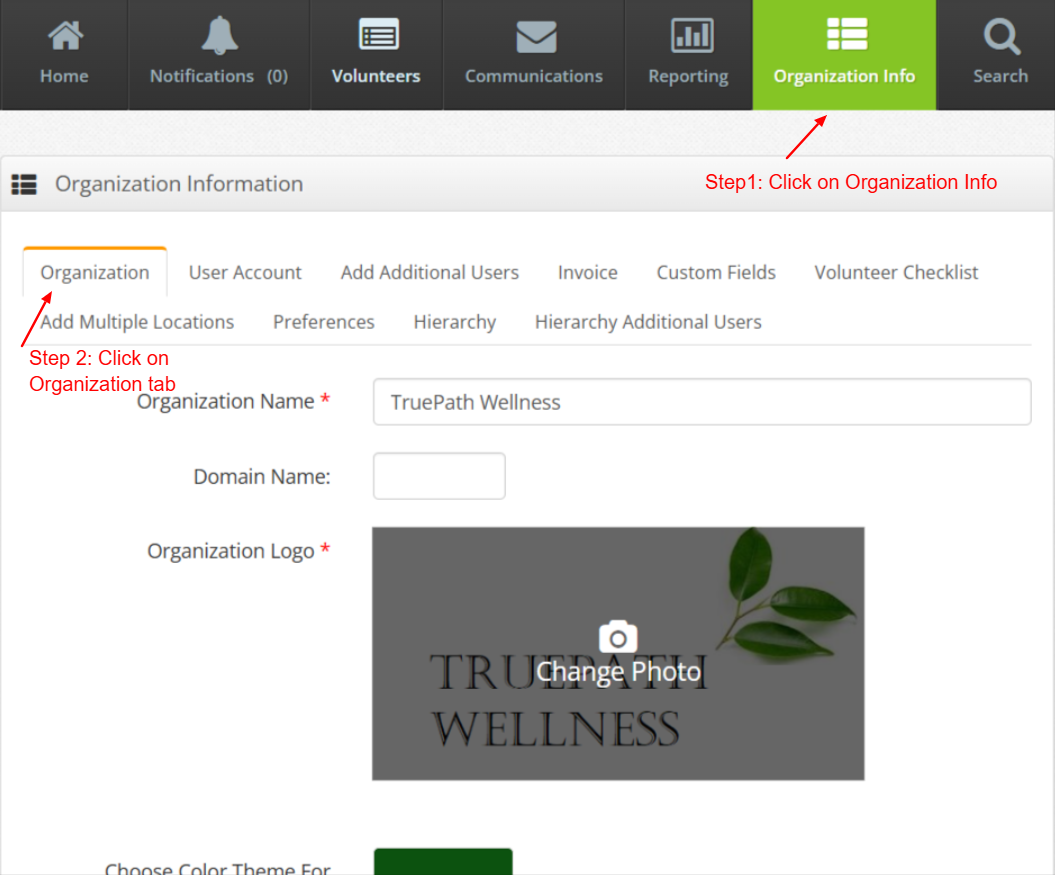
Open the ‘Organization Info’ page. Under this, click on the ’Organization’ tab.
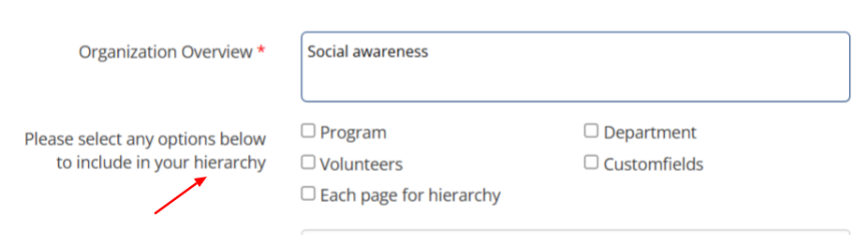
While filling the organization info, select the checkboxes of the options which you want to include in your Hierarchy based on your organization requirement.
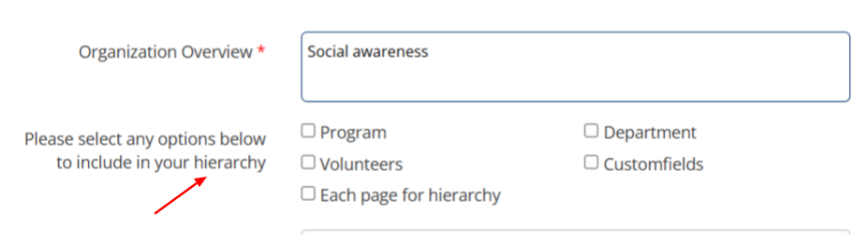
If all the checkboxes are unticked for an organization, then the Program, Department, Volunteers, Custom Fields, Public page will be common for all the levels of the Hierarchy.
Organization can select the options in any combination based on their organization requirement.
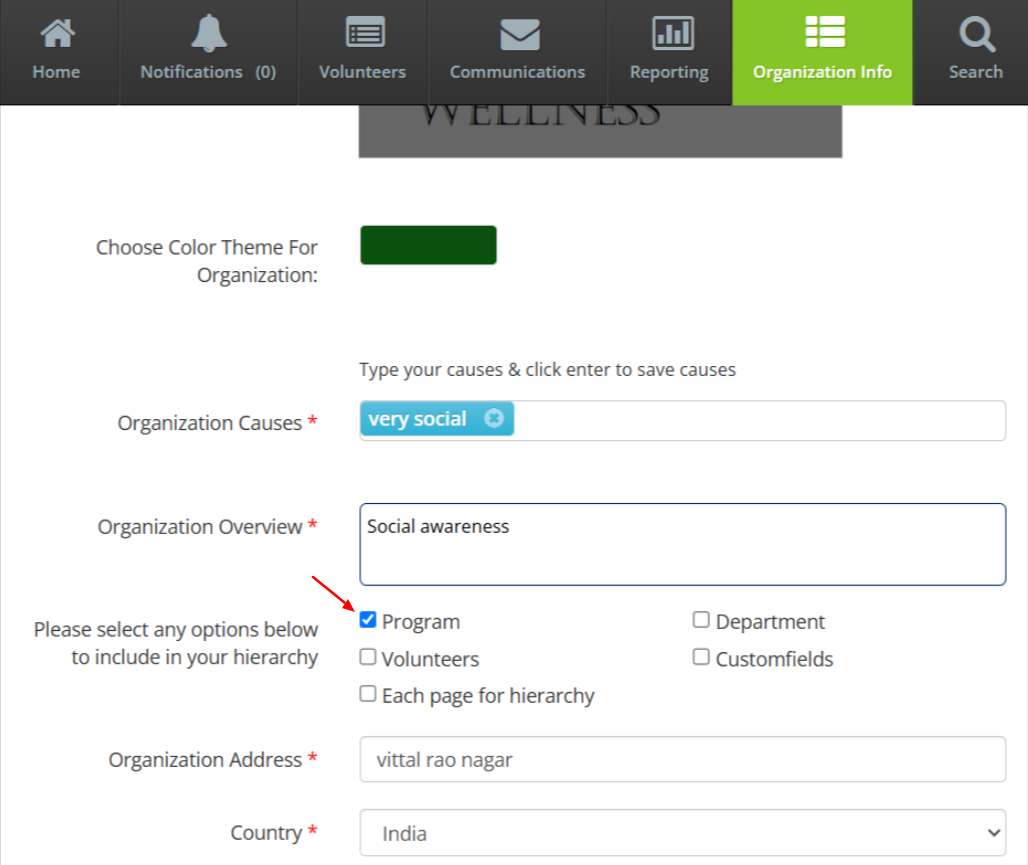
Program - If the ‘Program’ checkbox is ticked, then Programs can be created for all hierarchy levels
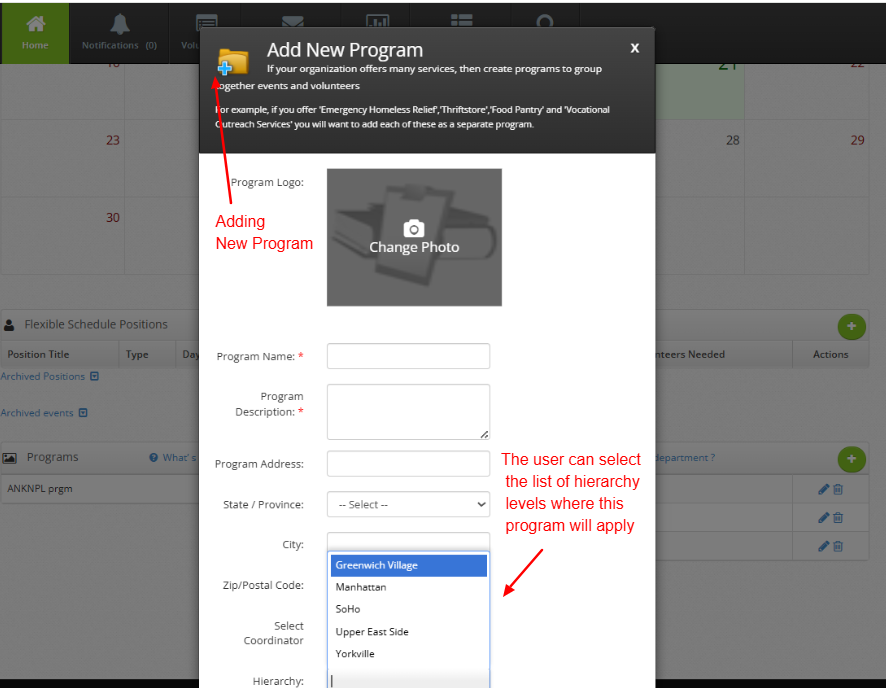
While creating a new Program, the user can select the list of hierarchy levels where that program will apply.
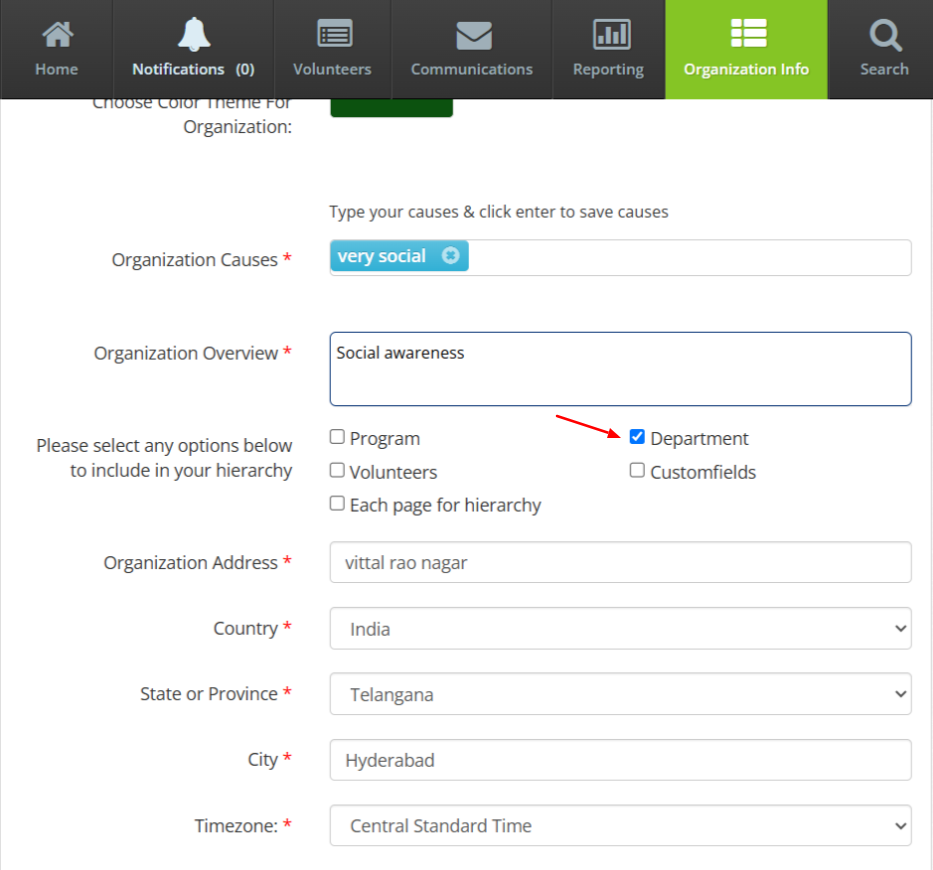
Department- If the ‘Department’ checkbox is ticked, then Departments can be created for all hierarchy levels
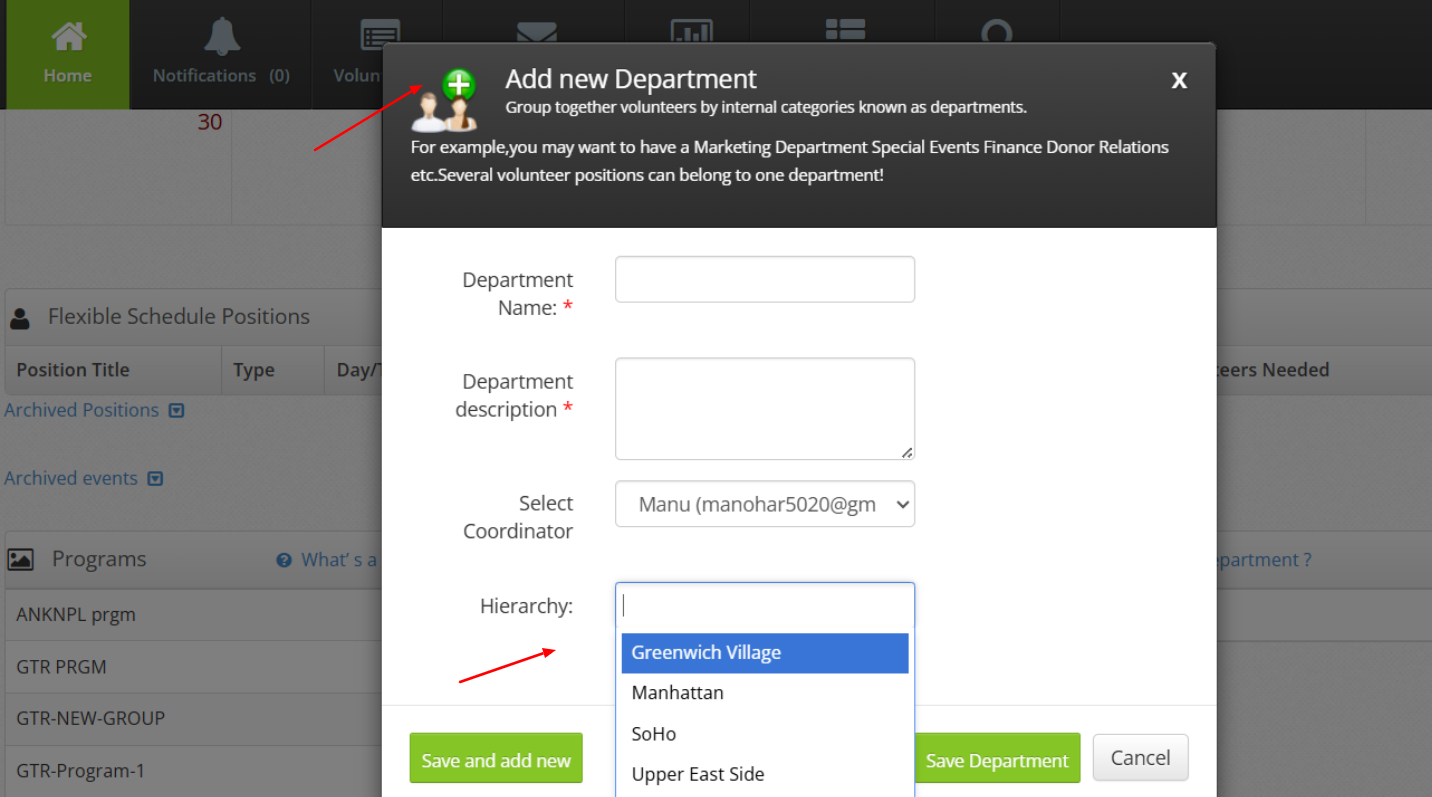
While creating a new Department, the user can select the list of hierarchy levels where that Department will apply.
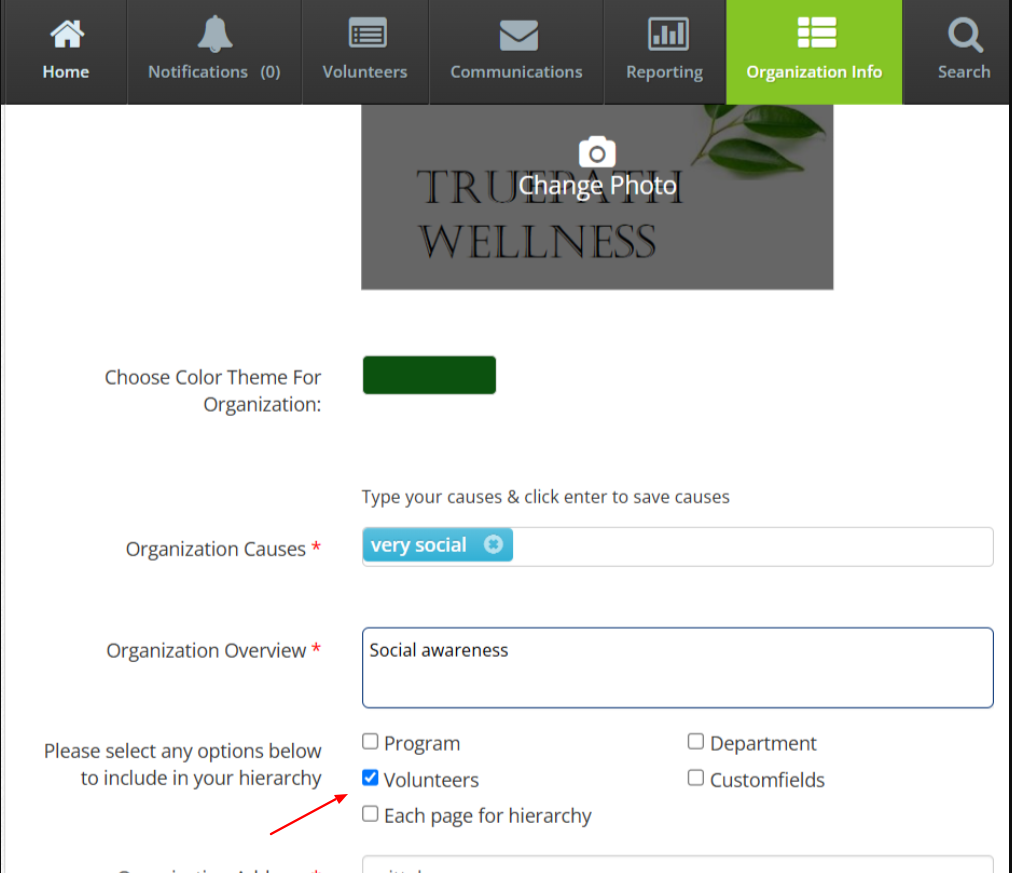
Volunteers- If the ‘Volunteers’ checkbox is ticked, then Volunteers can be created for all hierarchy levels
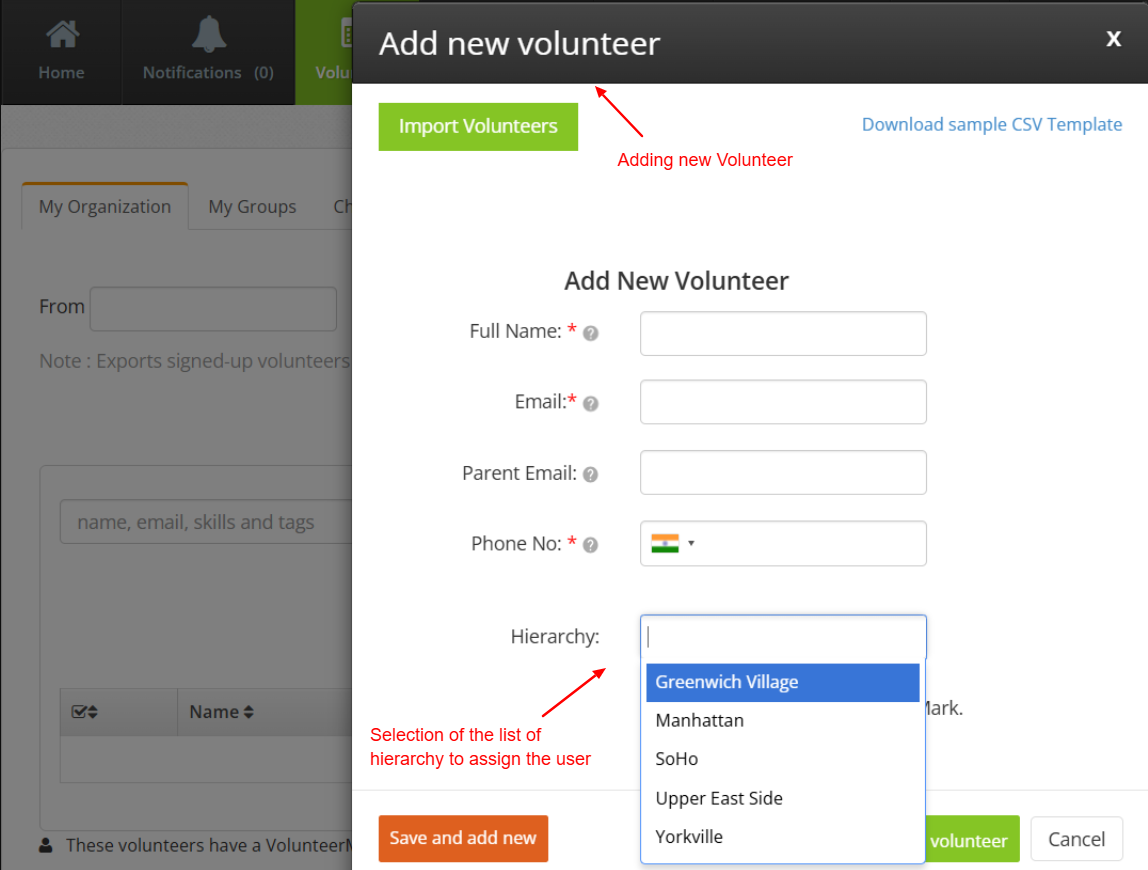
During the creation of a new Volunteer, the user can specify the hierarchy levels where the Volunteer will be assigned
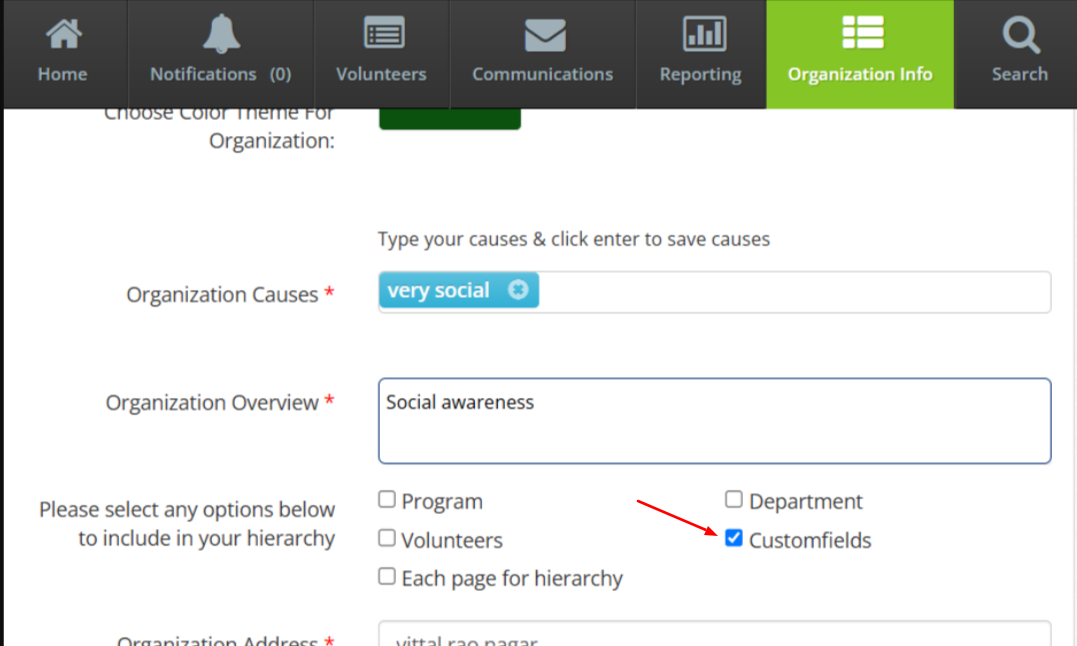
Custom Fields- If the ‘Custom Fields’ checkbox is ticked, then form can be customized for all the hierarchy levels
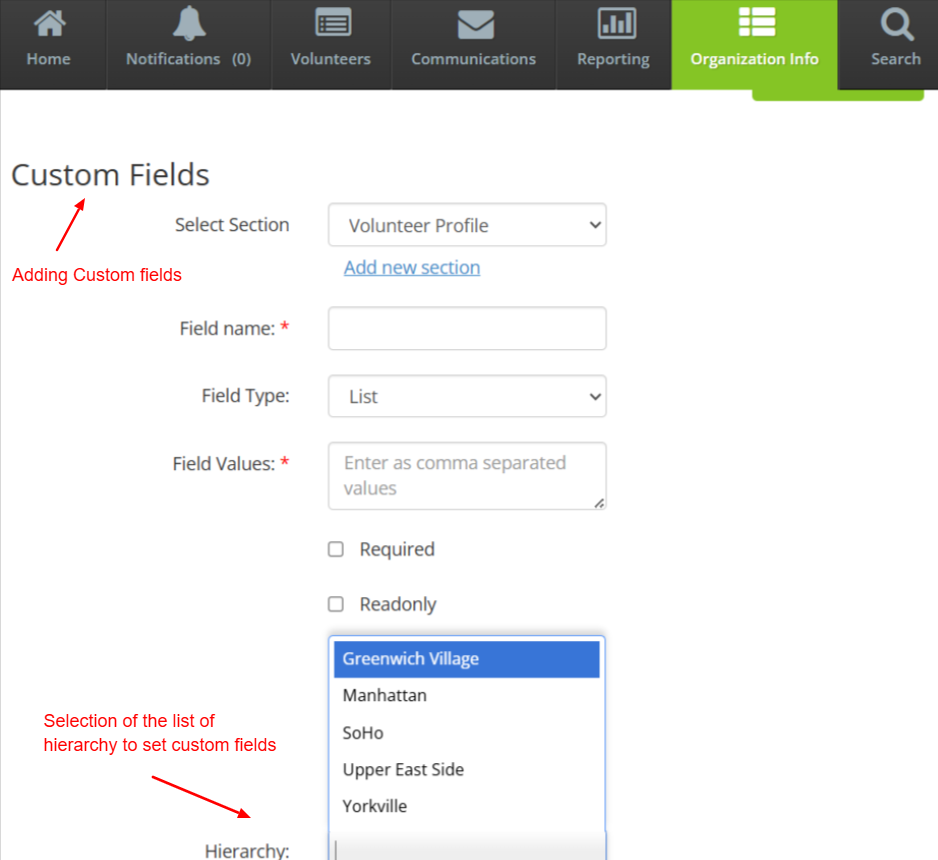
The user can specify the hierarchy levels for which they want to add custom fields.
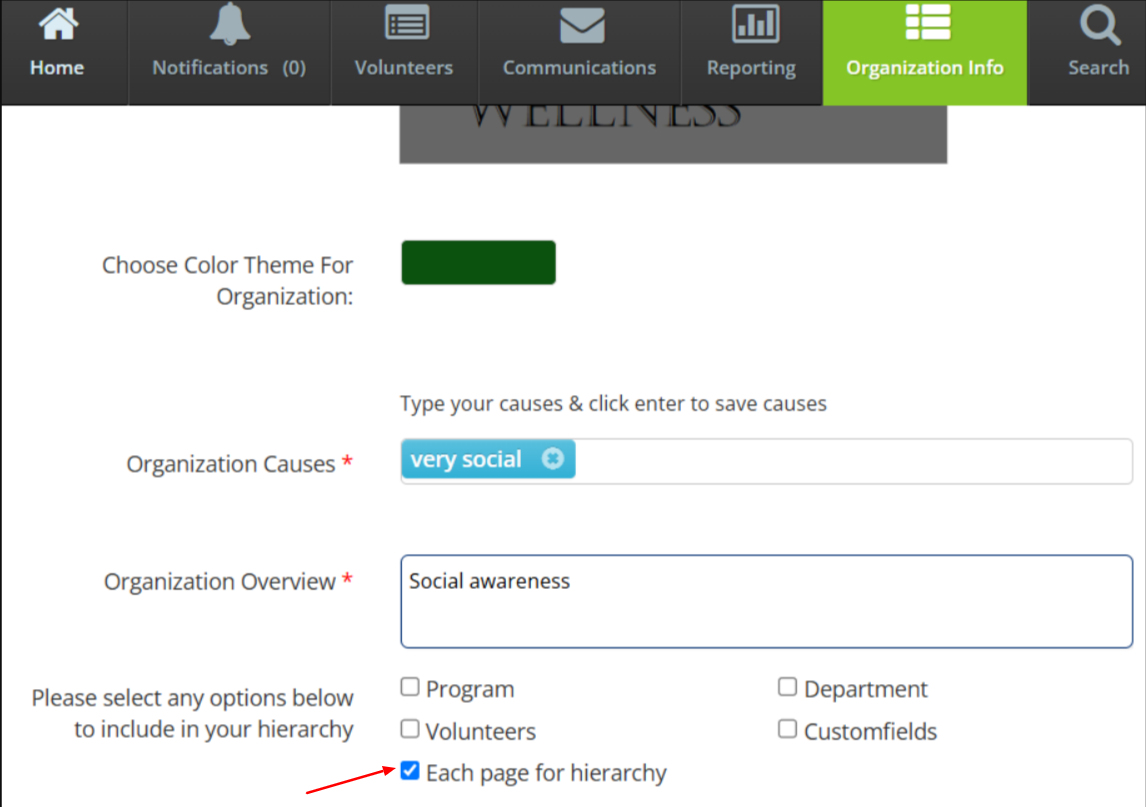
Each Page for Hierarchy- If the ‘Each Page for Hierarchy’ checkbox is ticked, then the public page will be hierarchy specific showing the information of that hierarchy.
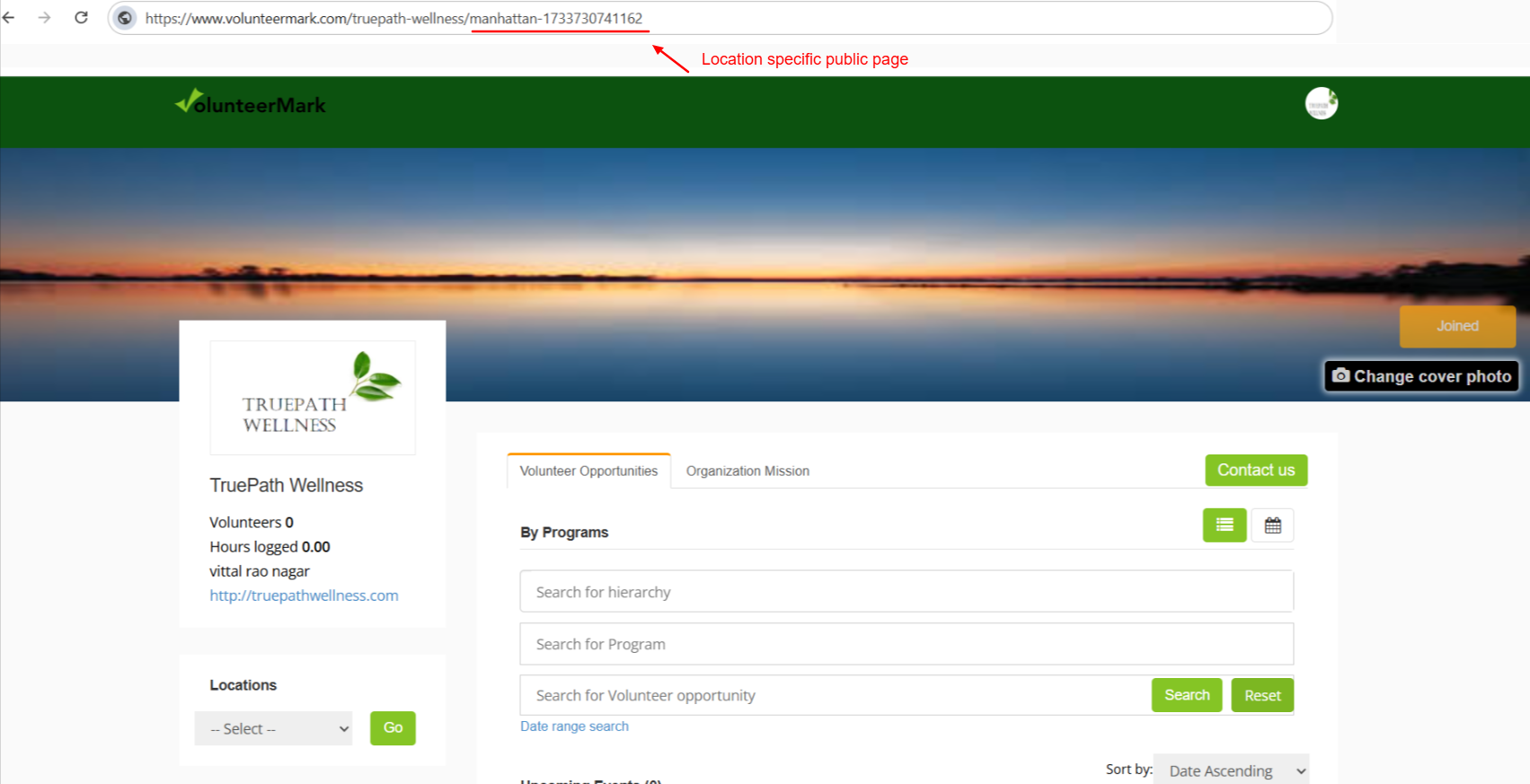
Each hierarchy will have their own specific public page. Public page will show the details (Programs, Events) of that particular hierarchy level.