How the Hierarchy Feature Enables Structured Volunteer Management
As ABC expands into multiple new areas of New York, such as Manhattan as a sub-level, with further divisions under it like Upper East Side and Greenwich as sub-sub-levels, the organization will continue running its core programs—Community Outreach, Healthcare Assistance, Education, and Environmental Support—with volunteers across these new levels. Each level will be organized with different departments, including the Digital Team, Finance Team, Front end Team, and Content Team each handling specific tasks & responsibilities.
To streamline management and ensure smooth operations across all levels, ABC can assign coordinators to each level. These coordinators will play a pivotal role in overseeing the activities and operations at their respective levels, ensuring that the goals and tasks are met efficiently.
To ensure effective management, coordinators at ABC can be granted specific permissions based on their roles and responsibilities. These permissions can be customized across the following categories:
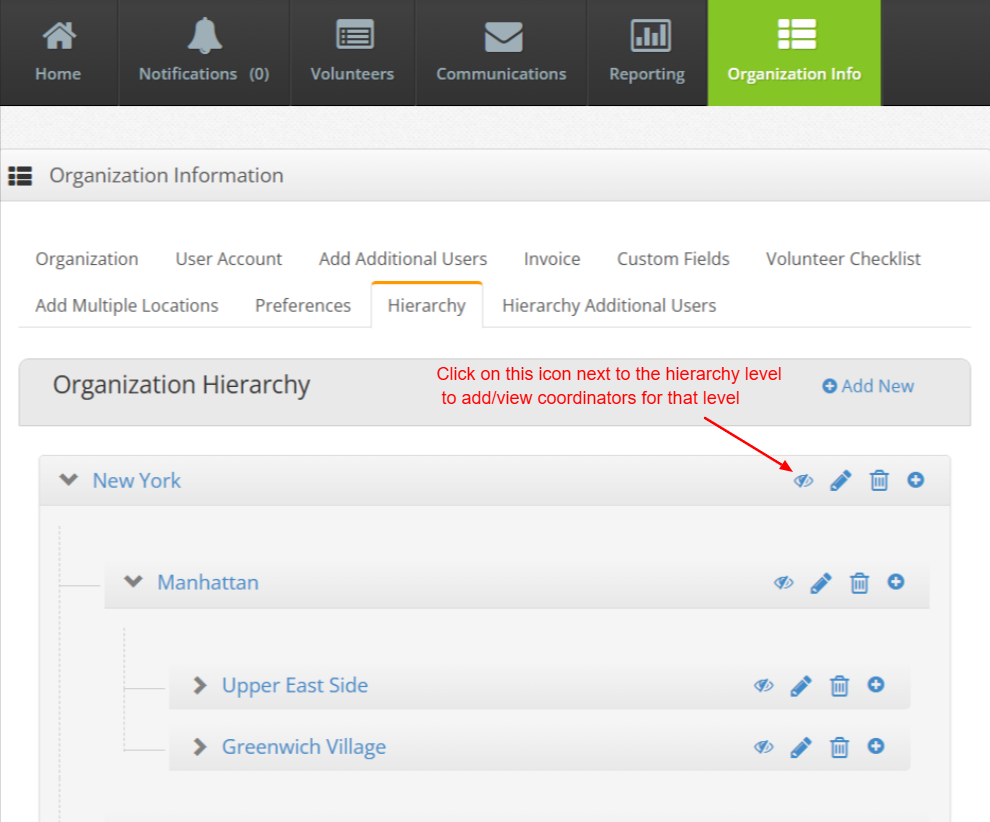
By clicking on this icon next to the level, you can either add new coordinators (individuals responsible for managing that level) or view existing coordinators associated with that level. Essentially, it provides a quick access point to manage or review the coordinators assigned to the particular level in the hierarchical structure
Fill the details of the coordinator
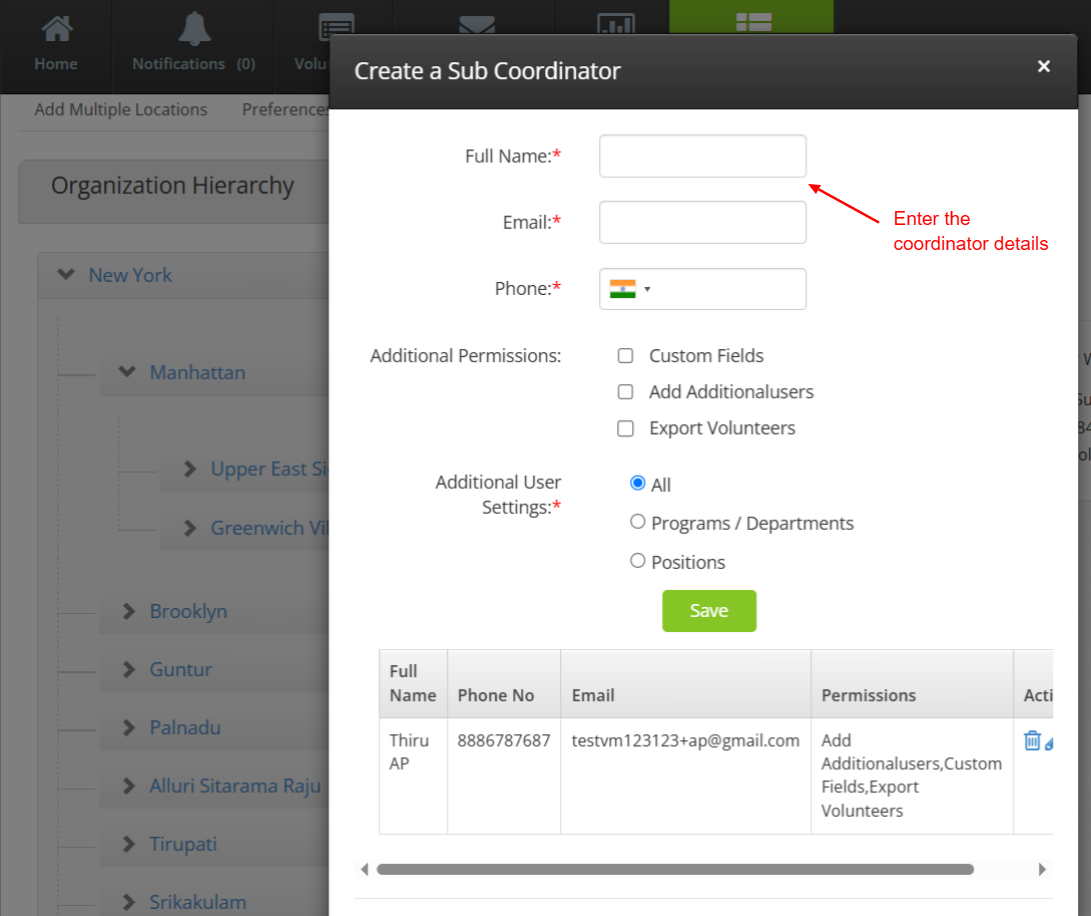
Coordinators can be assigned at any level within the hierarchy to better manage specific levels, sub-levels, or sub-sub-levels.
When a coordinator logs in, on the right top of the Home page, Hierarchy dropdown is visible showing the user assigned level and all the below levels.
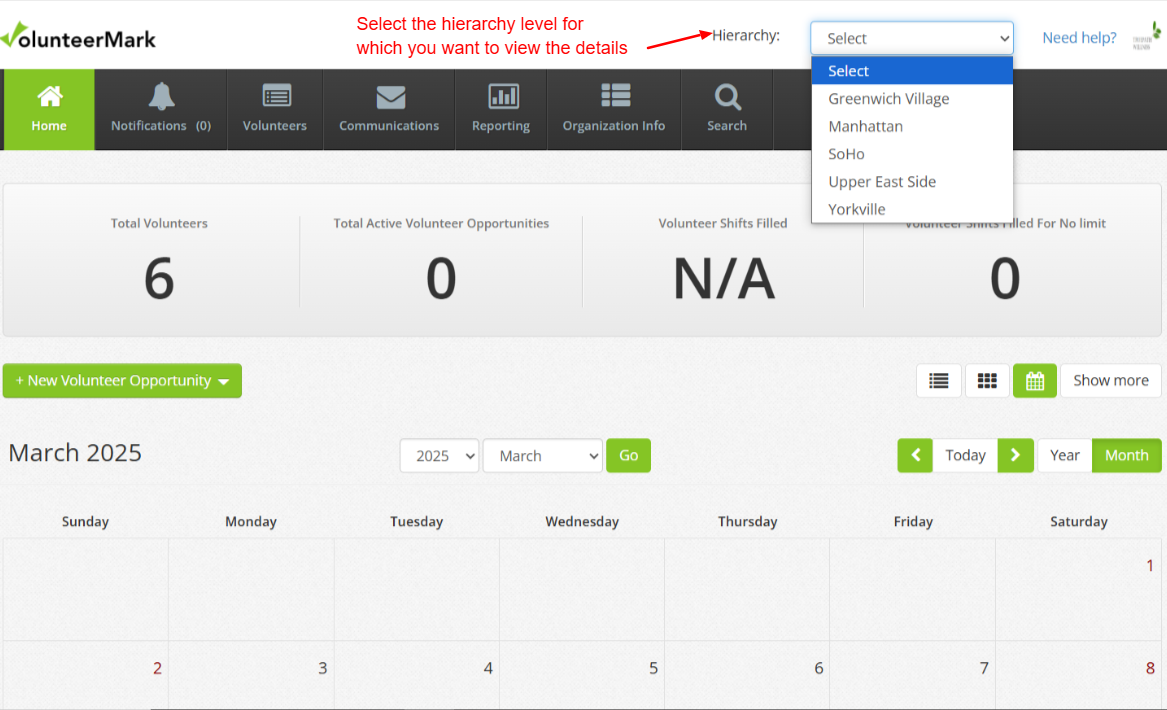
Upon logging, by default ‘Select’ dropdown will be applied, and all the tabs will display consolidated (summed-up) data of the coordinator's assigned level along with all lower-level hierarchies.

Here, "data" refers to all the details available in the tabs—Volunteers, Opportunities, Notifications, Communications, Reporting, and others.
In our example, as the user is from Manhattan level, it will show the consolidated data (summed up data) of the Manhattan level along with all the below level hierarchy.
Manhattan
Level 3
Upper East Side
Level 4
Yorkville
Coordinator can see all the beneath levels below his assigned level in the dropdown and can select any level for which he/she wants to view the details. If the coordinator selects a specific level, then the tabs will be loaded only with that specific hierarchy level data.
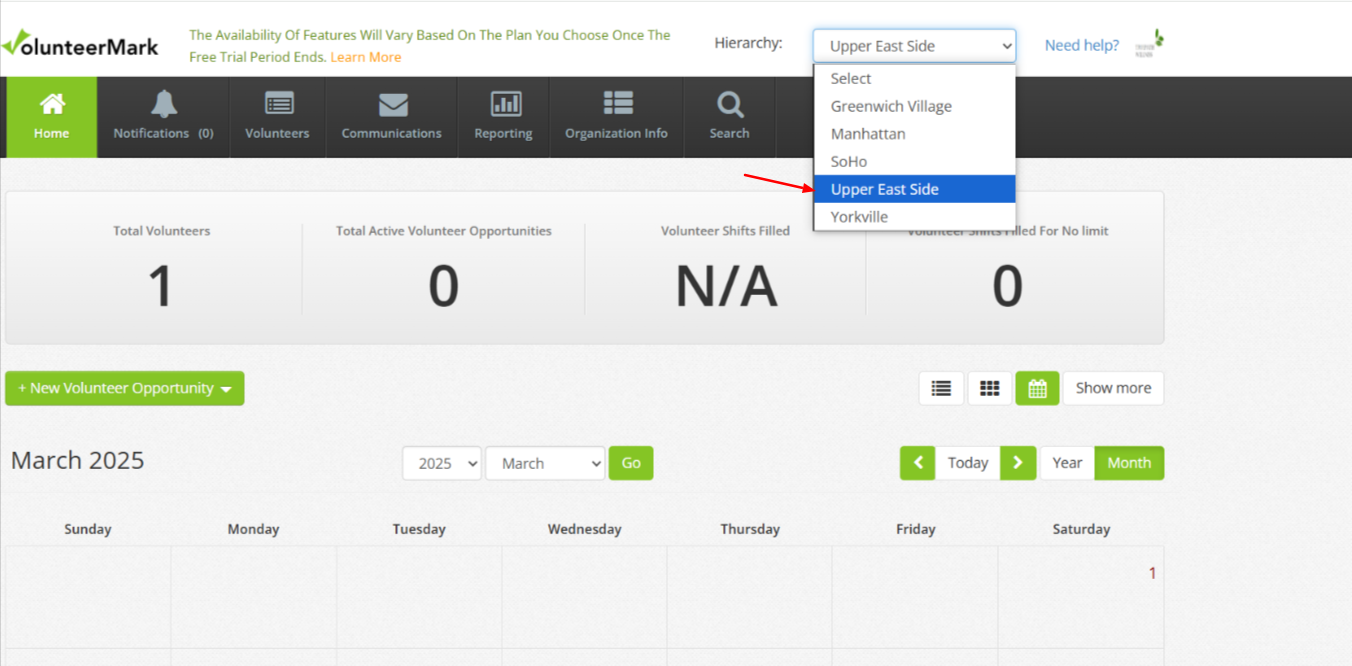
In our Example,
If the coordinator selects the ‘Upper East Side’ level, all the tabs will be loaded with the details of only that specific ‘Upper East Side’ level.
Permissions can be given to these coordinators within the hierarchy while assigning the coordinators.
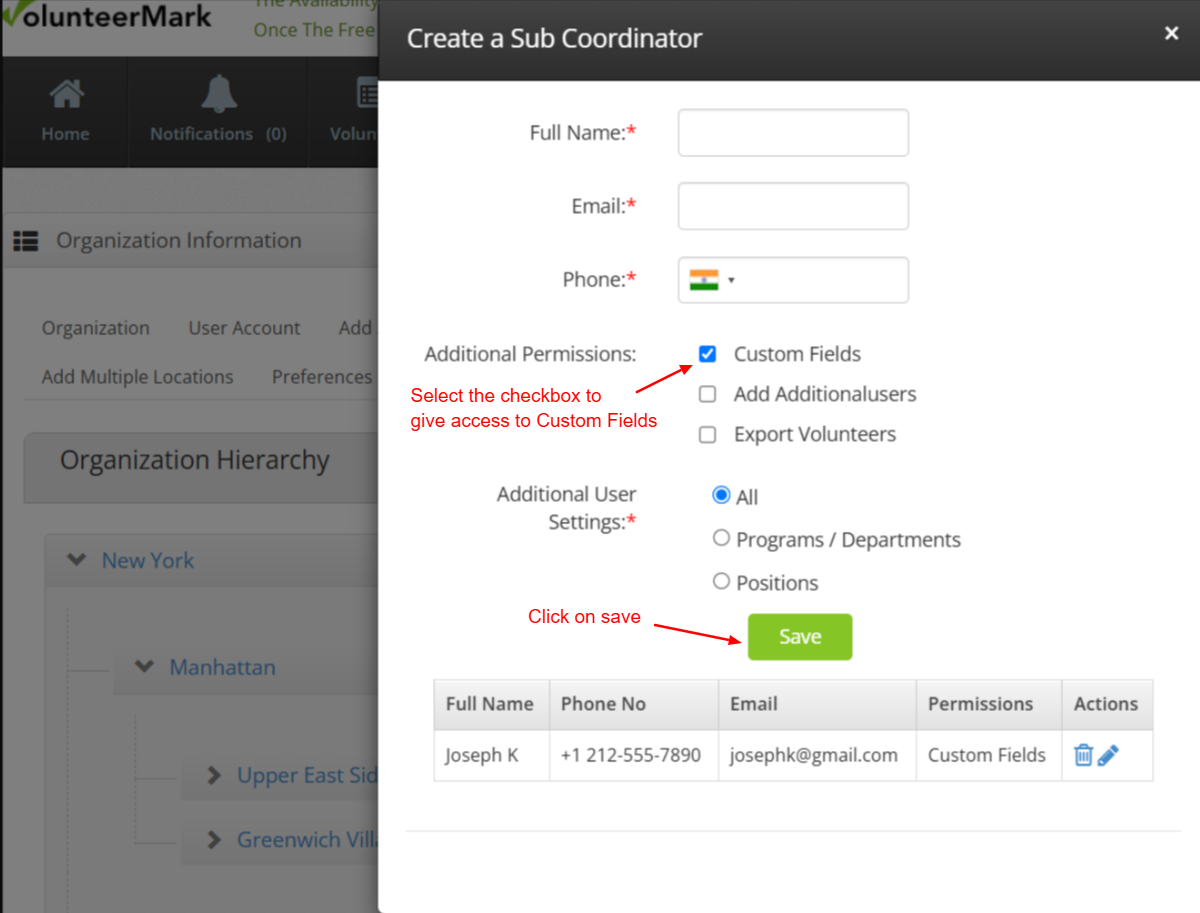
‘Custom Fields’ Permission
This permission defines whether the coordinator has the authority to create and manage custom fields that the volunteers fill during the sign-up. It is especially useful for organizations that require specific data collection or reporting formats at any level or sub-level within the hierarchy.
Example Hierarchy structure
Level 1:
New York
Level 2:
Manhattan
Level 3
Upper East Side
Level 4
Yorkville
Greenwich Village
Manhattan coordinator login:
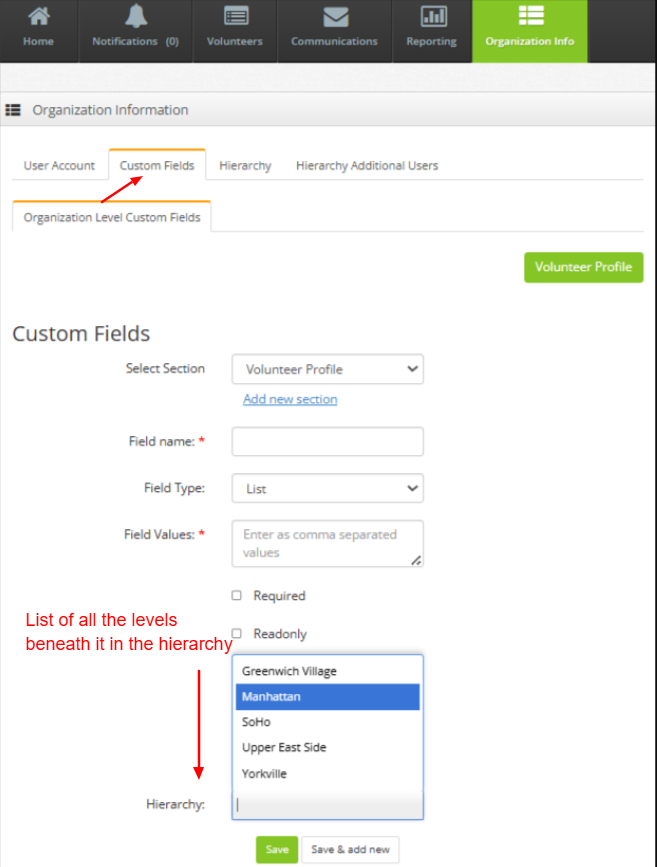
When the coordinator of a sub-level (e.g., Manhattan) is given access to custom fields:
- they can set custom fields for their level (i.e., Manhattan) and
- they can also set custom fields for all lower hierarchy levels, including:
- Upper East Side
- Yorkville and SoHo
They can choose the levels from the list and can set the custom fields for those levels.
In summary, the coordinator has control over custom fields for their assigned level and all the levels beneath it in the hierarchy as shown in the above figure.
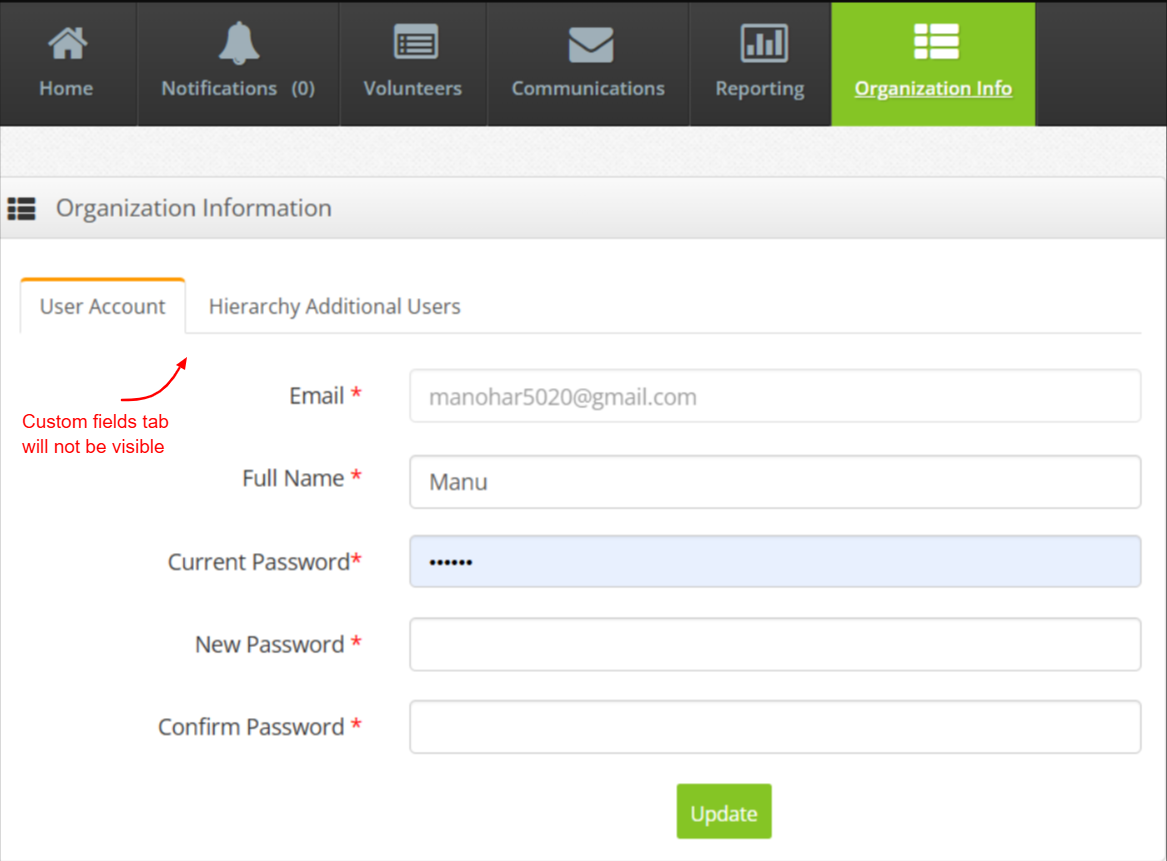
If the coordinator is not given access to custom fields (unticked the checkbox) then the coordinator will not be having the custom fields tab in his/ her access.
‘Add Additional users’ Permission
This permission controls whether the coordinator can add new users. It helps organizations maintain control by restricting user management to authorized personnel within each hierarchical level.
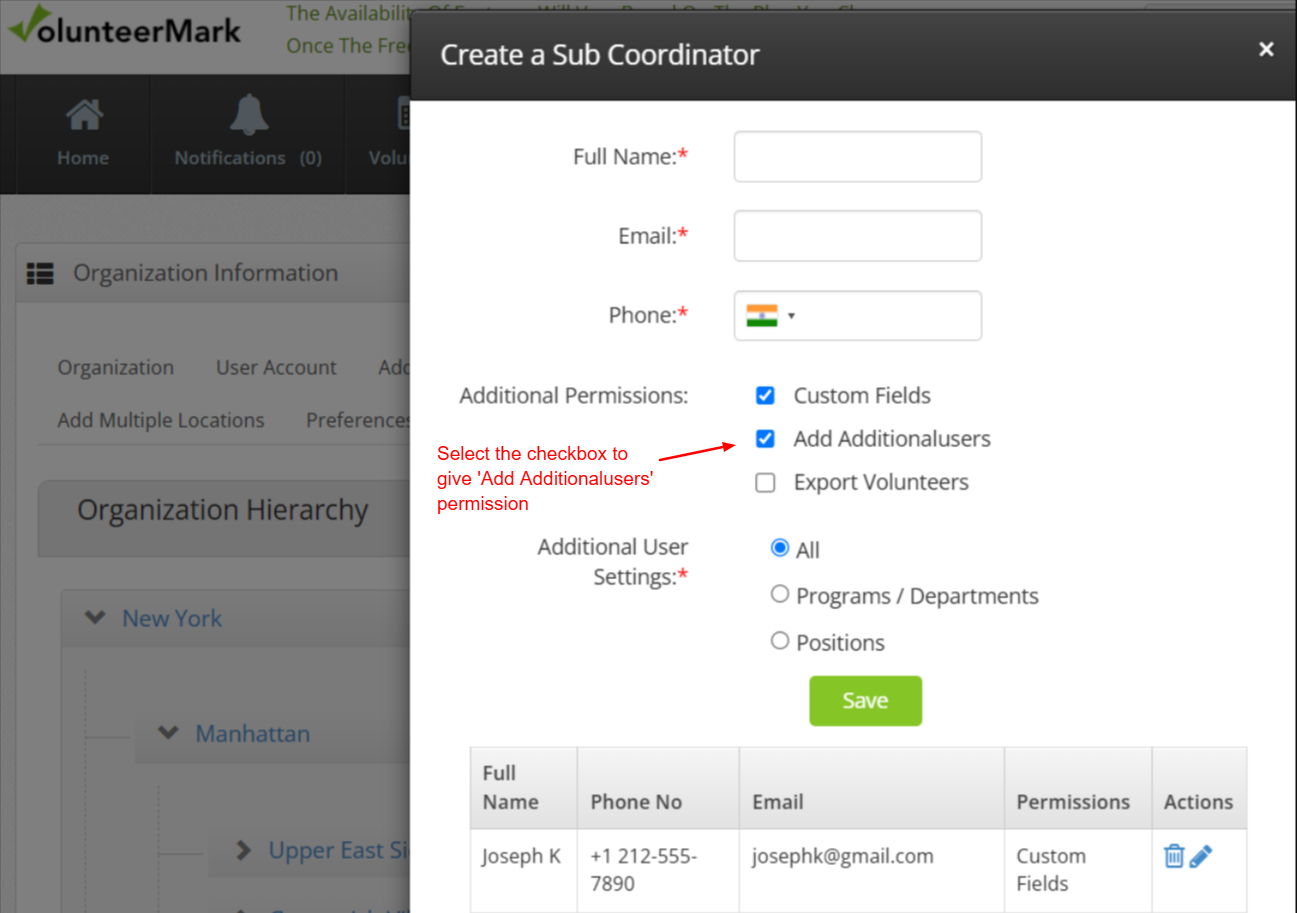
Manhattan user login:
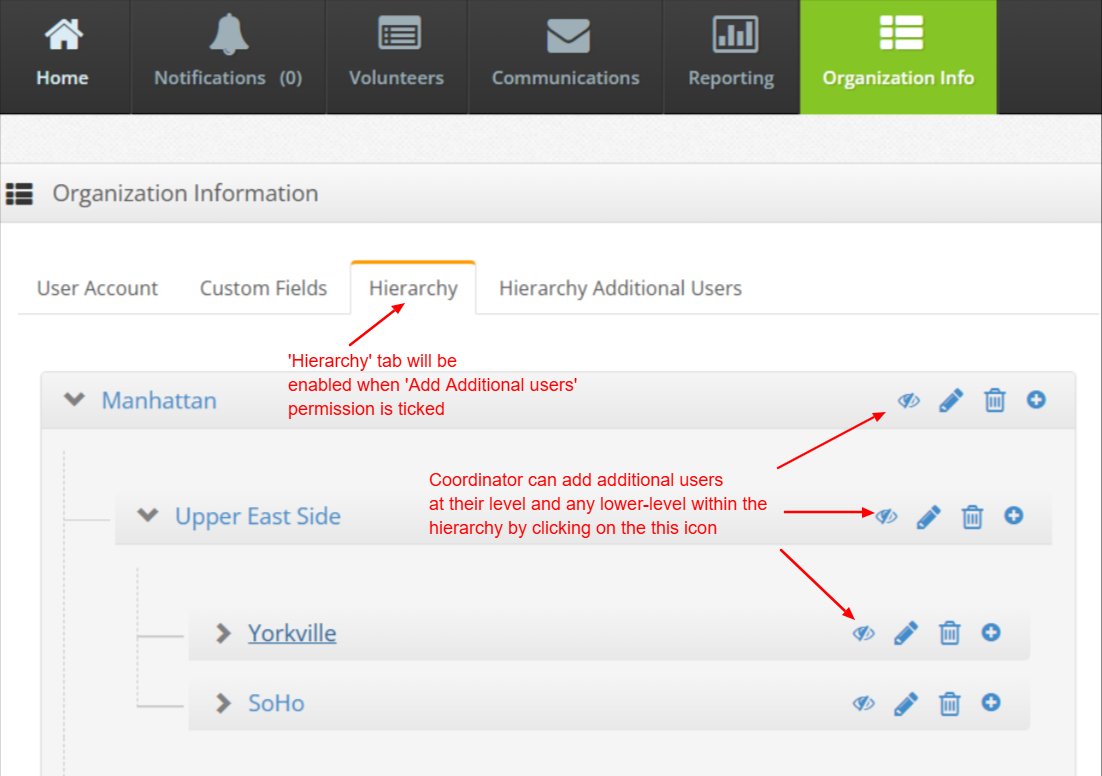
If the checkbox is selected, the user can add additional users from the Hierarchy tab by clicking the ‘eye’ icon next to a level. This allows the user to add users for their assinged level and all its subordinate levels in the hierarchy.
For example, in our case, if I log in as a user with additional user permissions at the Manhattan level, I can add new users for Manhattan and all its lower-level levels in the hierarchy, such as Upper East Side and Yorkville from the Hierarchy tab, as shown in the figure above.
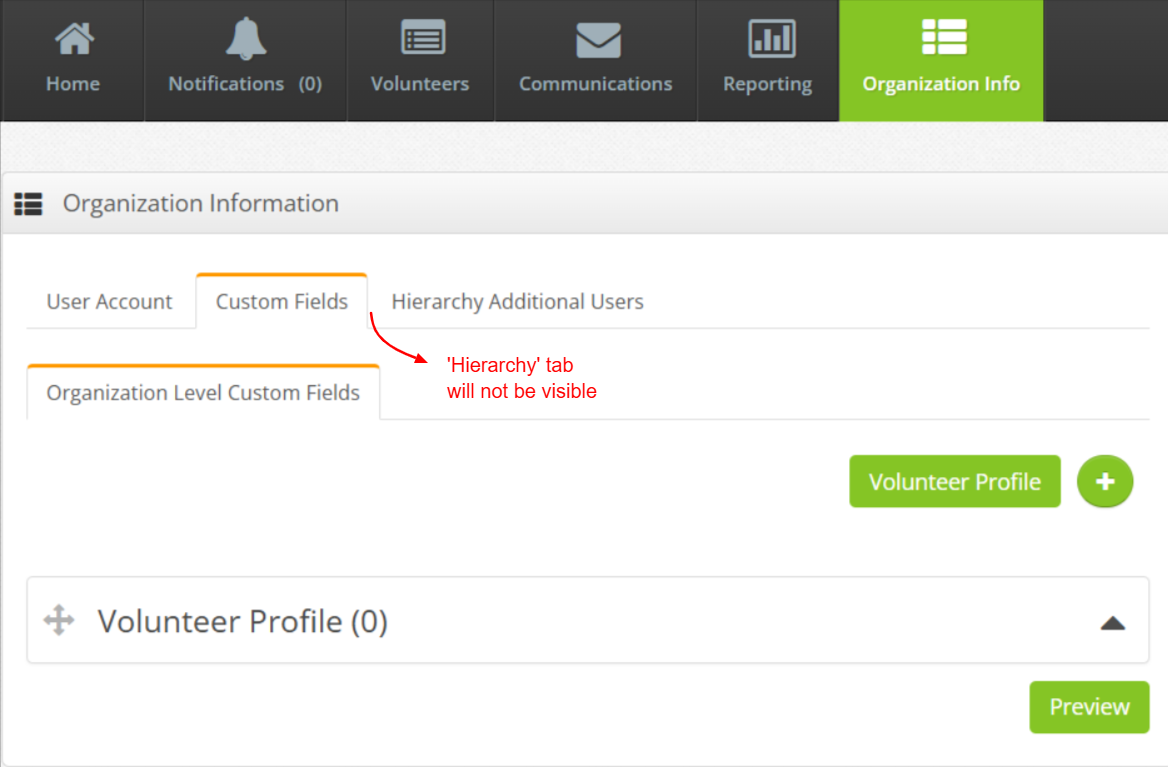
And if the checkbox is not selected (‘Add Additional users’ permission is not given), then the user will not see the Hierarchy tab and cannot add any additional users/coordinators.
‘Export Volunteers’ Permission
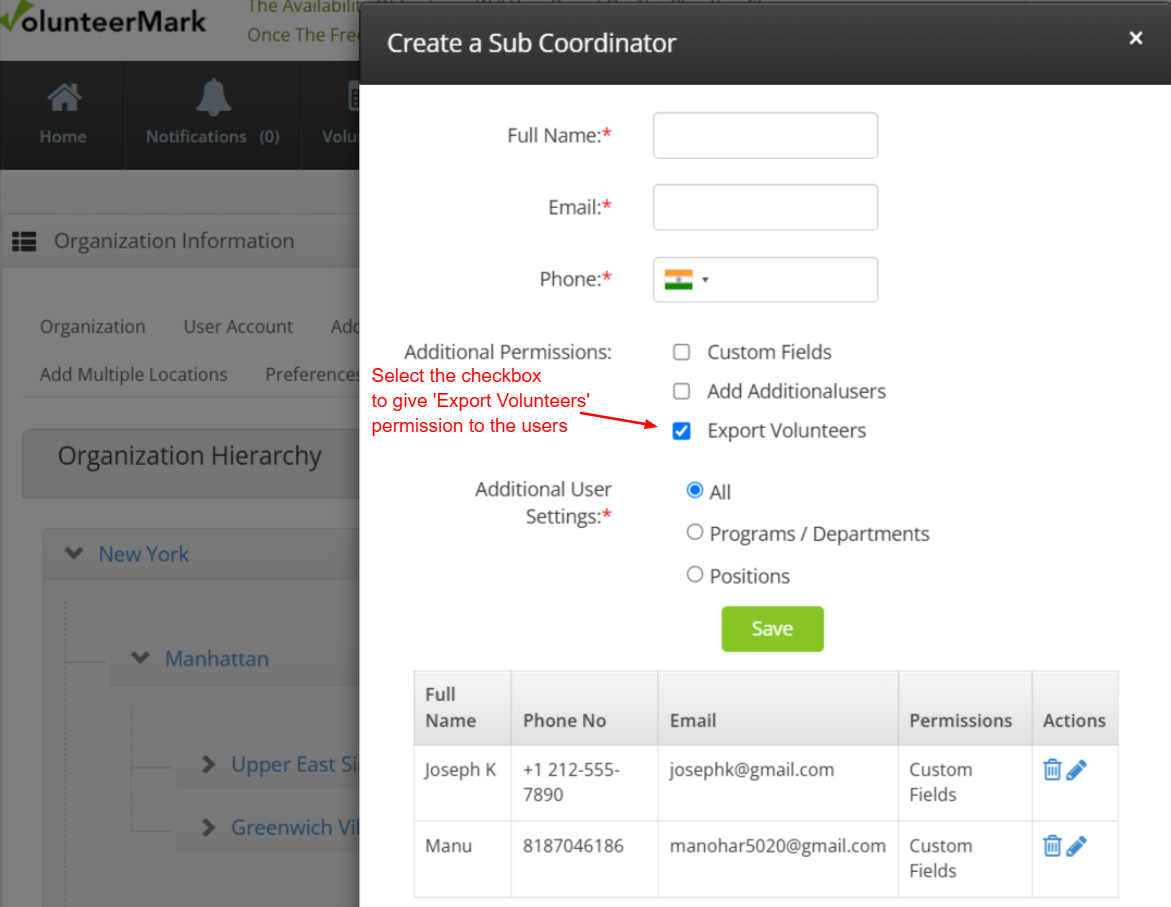
This permission determines whether the coordinator can export volunteer data for reporting or record-keeping purposes. It ensures that data security and confidentiality are upheld across different levels of the level hierarchy.
Manhattan level coordinator login:
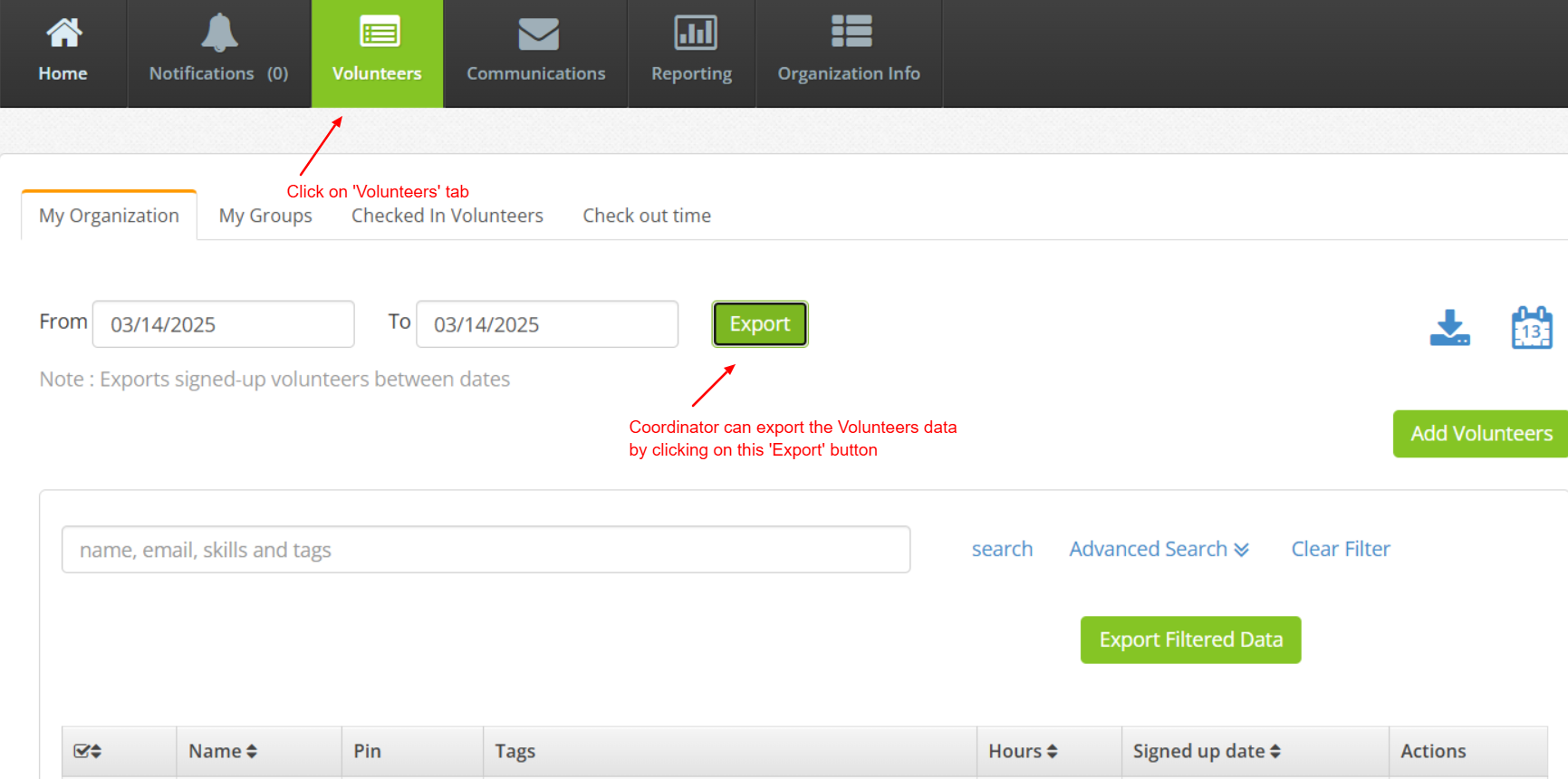
If the ‘Export Volunteers’ checkbox permission is selected, then that coordinator can export the Volunteers data as shown in the above figure.
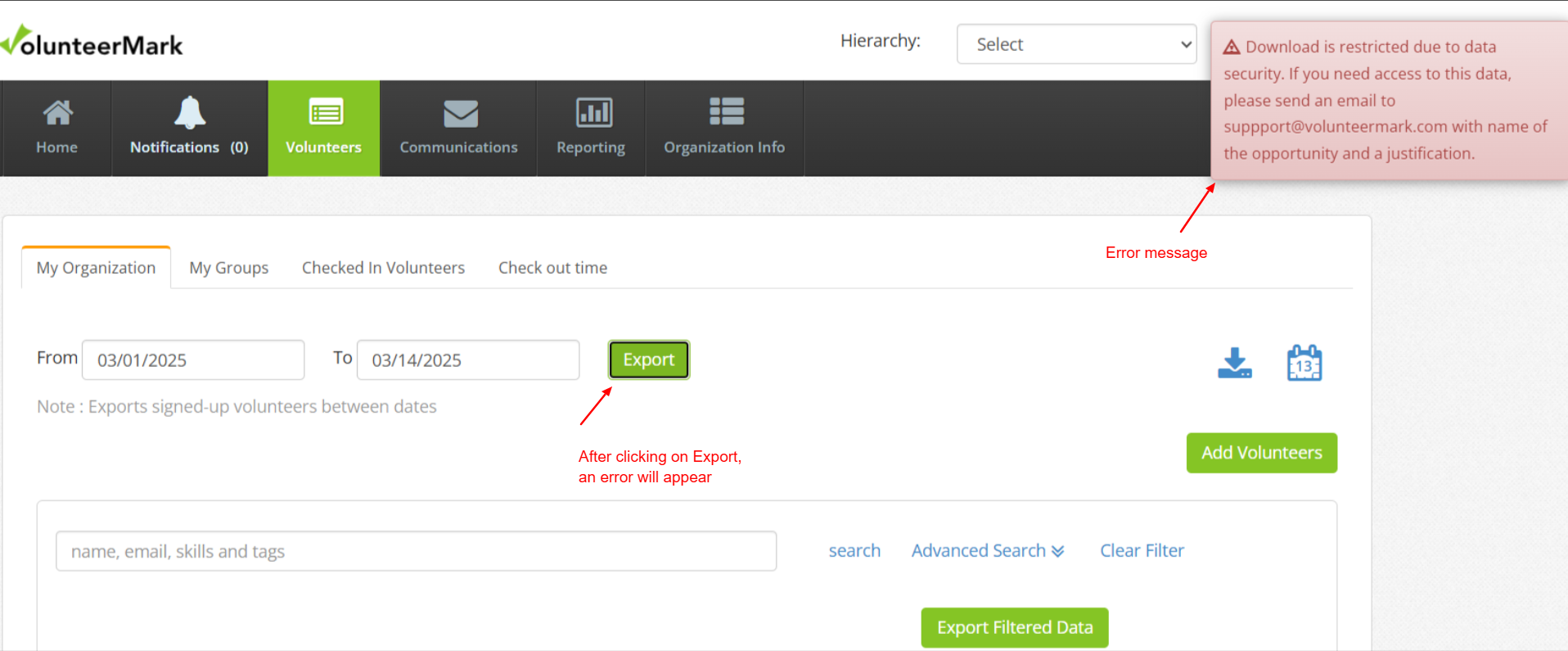
If the ‘Export Volunteers’ checkbox permission is unchecked, then the coordinator will get an error message ‘Download is restricted due to data security. If you need access to this data, please send an email to [email protected] with name of the opportunity and a justification’ as shown above.
‘All’ access:
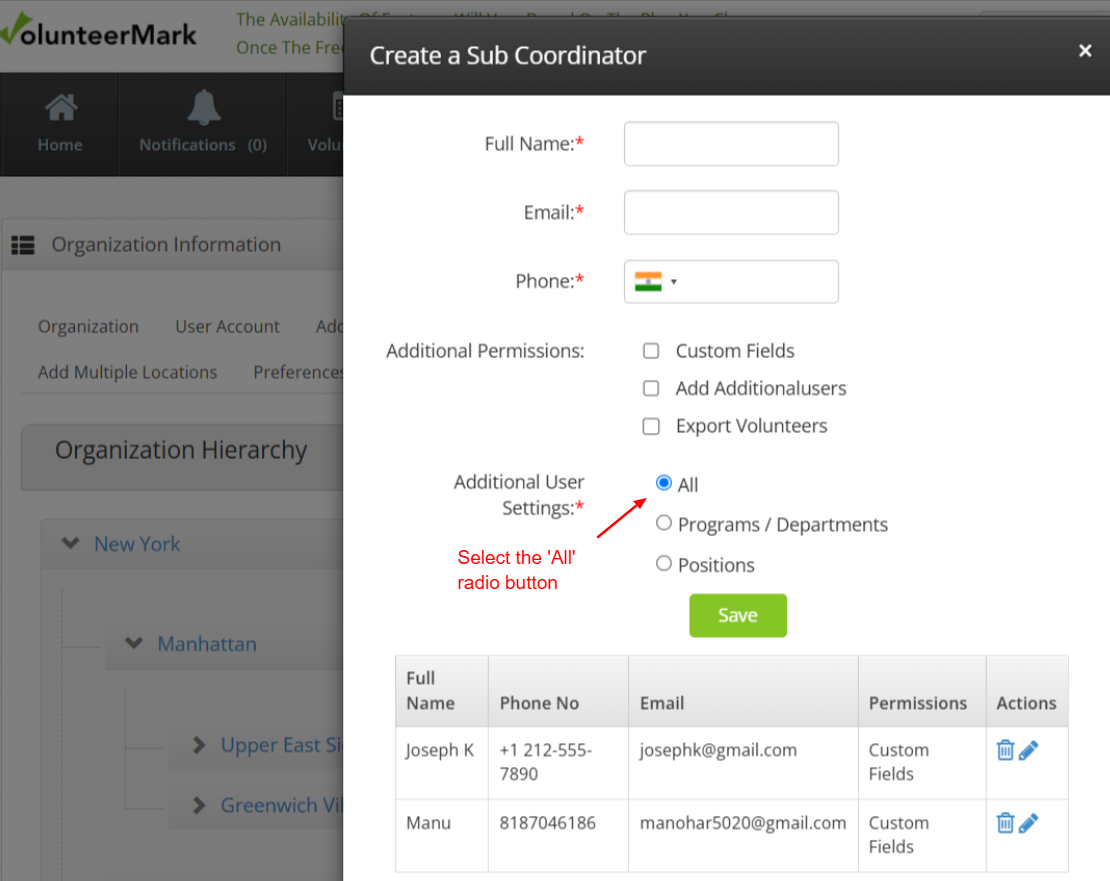
The coordinator is granted full control over all Positions, Departments, Programs level permission across the entire level hierarchy. This level of access is ideal for admins responsible for overseeing the entire organization.
‘Programs/Departments’ access:
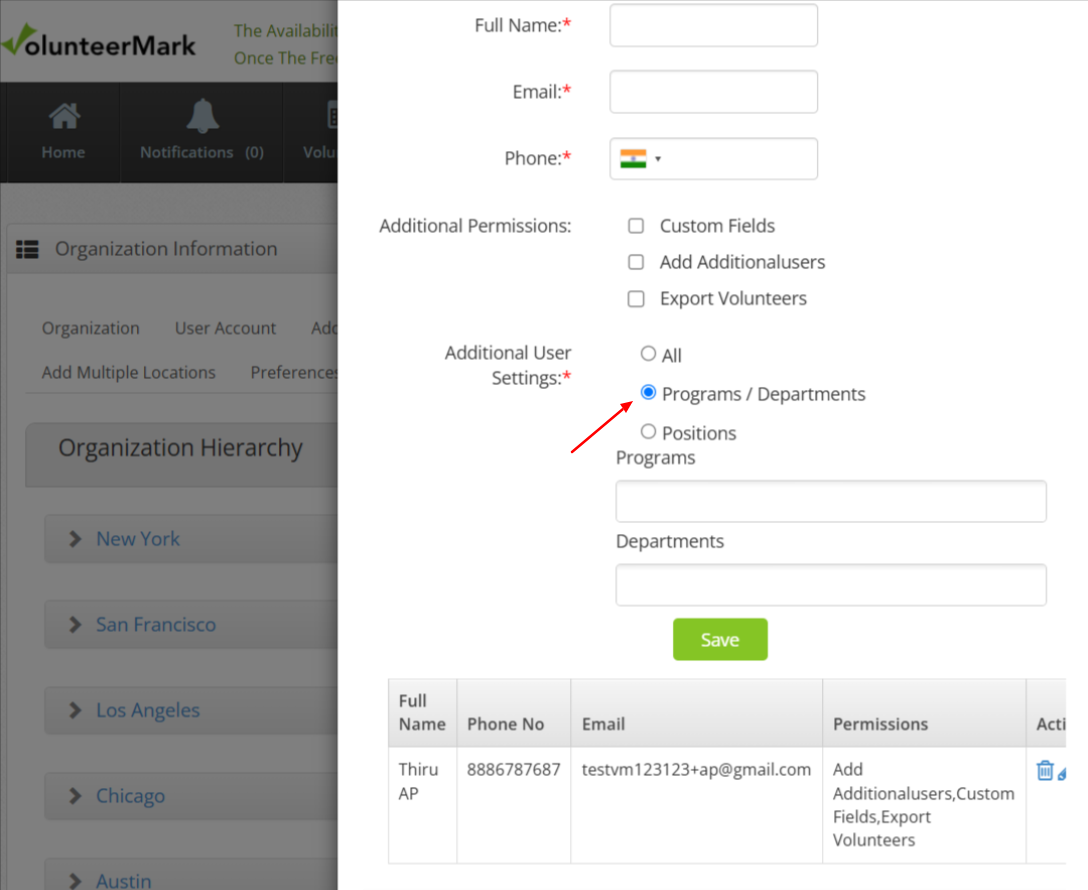
When the coordinator at a level is given permission to Programs/ Departments, he/she will get access to the Programs/ Departments selected from the list. In the selection list, all available Programs/Departments of that level and beneath the levels is displayed, relevant Programs/Departments which the coordinator should be given permission can be selected.
This allows organizations to assign coordinators to relevant areas within the level hierarchy.
‘Positions’ access:
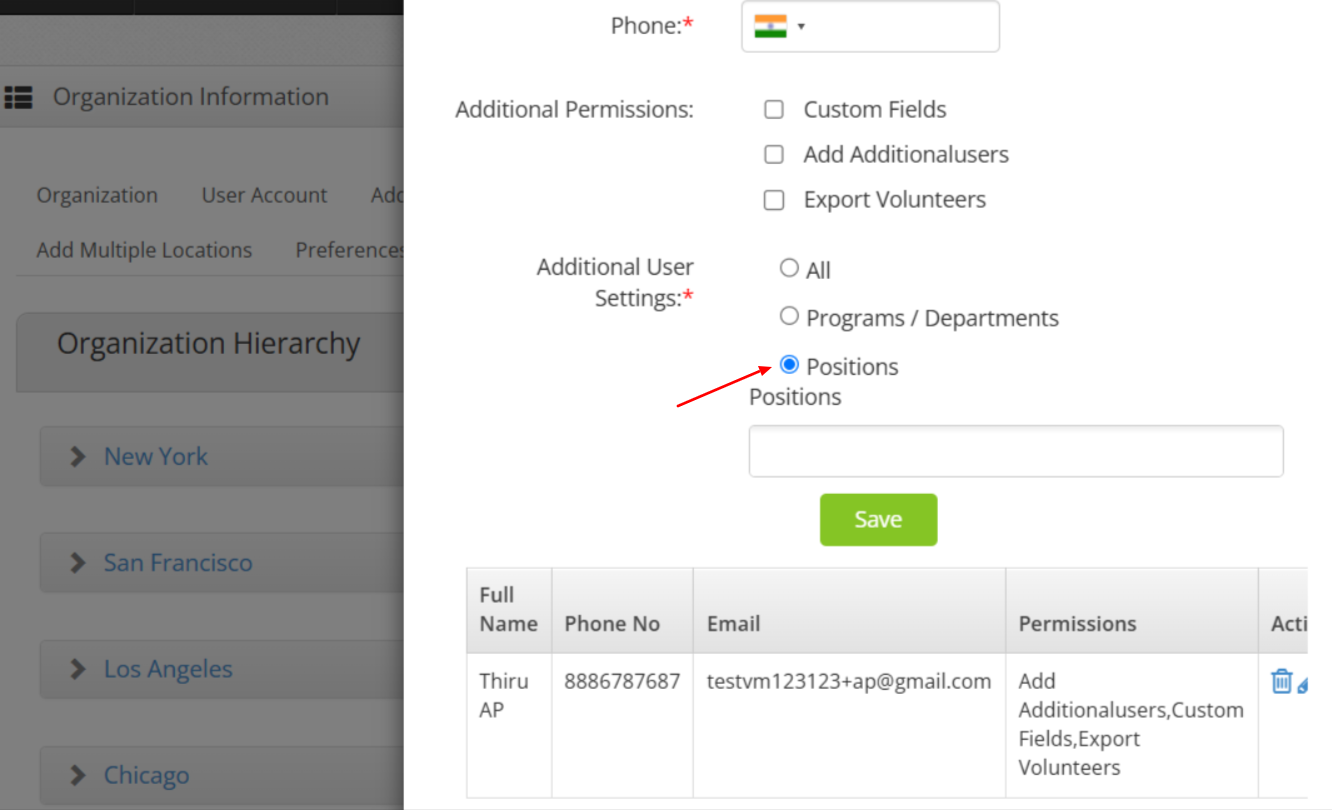
When the coordinator at a level is given permission to Positions, he/she will get access to the Positions selected from the list.
In the selection list, all available Positions of that level and beneath the levels is displayed, relevant Positions which the coordinator should be given permission can be selected.
This allows organizations to assign coordinators with relevant Positions to manage within the level hierarchy.